
How Google review cards work: NFC taps and QR codes
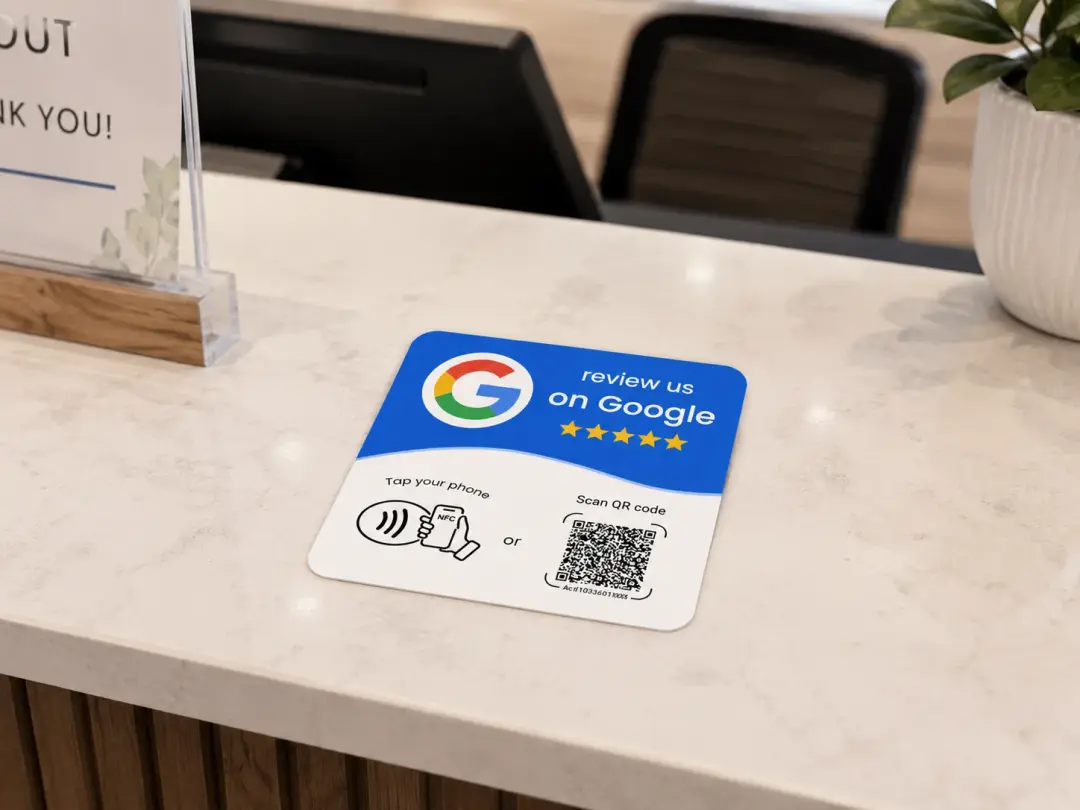
A Google review card gives customers a shortcut to your business’s review page. They tap a compatible phone against its NFC tag or scan its QR code, then open the link and write their own review. Customers must sign in to a Google Account to post. The card cannot submit a review for them.(1)
In this guide
What happens when a customer taps or scans?
The card carries a web address. NFC is the tap option: a compatible phone reads the small tag in the card. QR is the camera option: the customer scans the printed code. Both should lead to the review page for the same business.
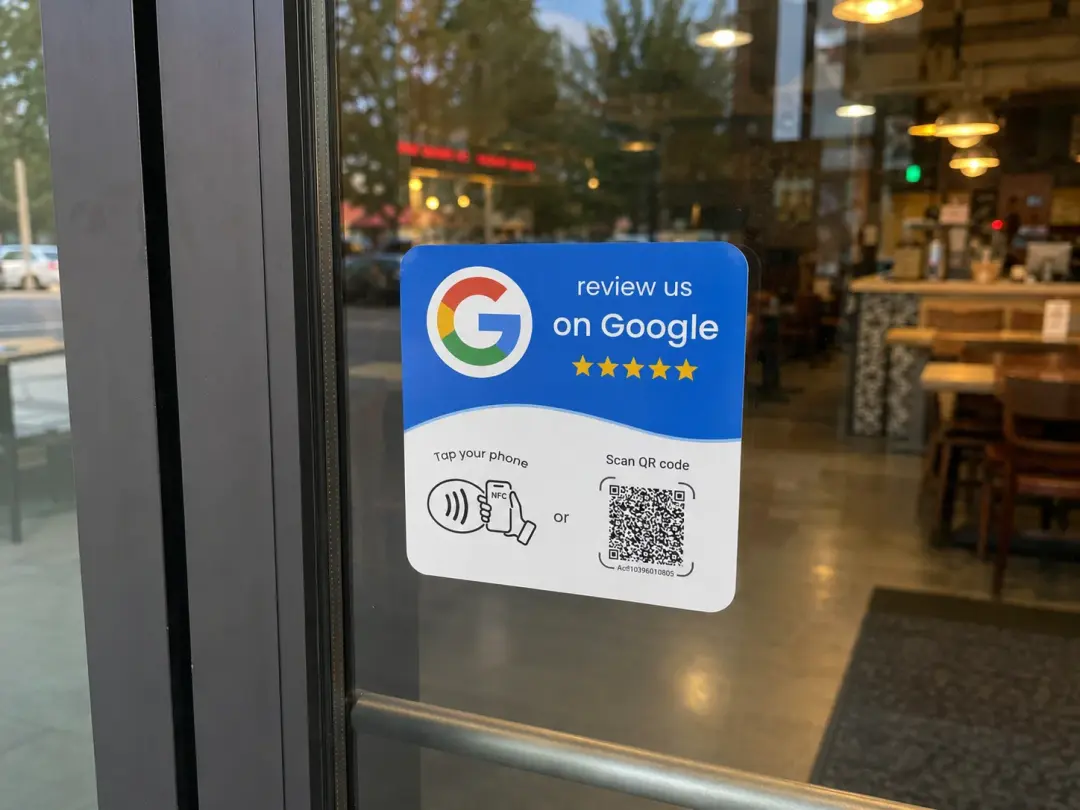
- Tap: bring the phone close to the card’s NFC mark and open the link notification if one appears.
- Scan: open a camera or QR scanner, frame the code and select the link shown on screen.
- Check: make sure Google shows the business you intended to review.
- Review: sign in if Google asks, then choose a rating and share your own experience. Posting is the customer’s decision.
On supported iPhones, background NFC reading shows a notification that the customer opens. The destination may open in an associated app or in the browser. A tap does not automatically publish anything.(2)
On iPhone, you can also use the camera to scan the QR code, then tap the link that appears.(3)
What does the customer need?
For a tap, they need a phone that supports reading the card’s NFC tag. For a scan, they need a working camera and QR-reading software. Either route needs internet access to load Google. Compatibility depends on the phone and its settings; “works on any phone” is too broad a promise.
Google requires a signed-in Google Account to leave a review. A Gmail address is not required. If the customer is signed out, a sign-in step is expected; a card cannot remove it.(1)
How is the card connected to your business?
Start with the review link from your own Google Business Profile. On a computer, open the profile, choose Read Reviews, then Get more reviews. Copy the review link from there.(4)
Google also provides a downloadable QR code in that panel. Its QR-generation feature currently requires a computer browser.(4)
A preconfigured card supplier sets the NFC tag and printed QR code to your review destination. With a blank DIY card, you arrange the NFC programming and QR printing yourself. Before ordering, ask who handles setup, what link they need, and whether a redirect service sits between the card and Google.
Test both routes when the card arrives. A successful NFC tap is not proof that the printed QR code is correct. Check the business name and location on each destination, especially if you manage more than one branch. Stop at the review screen; you do not need to publish a test review.
NFC card or a free QR code?
- NFC tap
- A compatible phone reads the tag
- Useful when you want customers to open the link without framing a printed code. Check support and tap instructions for the phones your customers use.
- QR scan
- A camera reads the code
- An alternative when NFC is unavailable. Keep the print clear, visible and easy to frame; a camera alone does not guarantee QR support.
You can start with Google’s own QR code and print it on a sign or receipt. The QR download does not require buying an NFC card; printing is your own cost.(4)
A card purchase adds the physical card, tap option and whatever setup or support the supplier includes. Neither option changes Google’s sign-in requirement.(1)
Do Google review cards work?
They can remove the step of searching for your business before reviewing it. That is the useful part: a clear route to the right page. Whether someone follows through still depends on their experience, willingness and ability to sign in.
A working link is not a guarantee of more reviews, five-star ratings or higher rankings. A card also cannot follow up with someone who has already left. If most of your customers deal with you remotely, sharing the review link in your normal follow-up may be a better starting point.
Why reviews and your website are the same job
A client example: the results shown on Google
For one clinic client, the supplied Google Business Profile screenshots show 11 reviews with a 4.2-star average and 31 reviews with a 4.9-star average. The time between these captures has not yet been confirmed.
- Google review count
- 11 to 31
- A difference of 20 reviews in the displayed totals.
- Average Google rating
- 4.2 to 4.9
- A difference of 0.7 stars in the displayed averages.
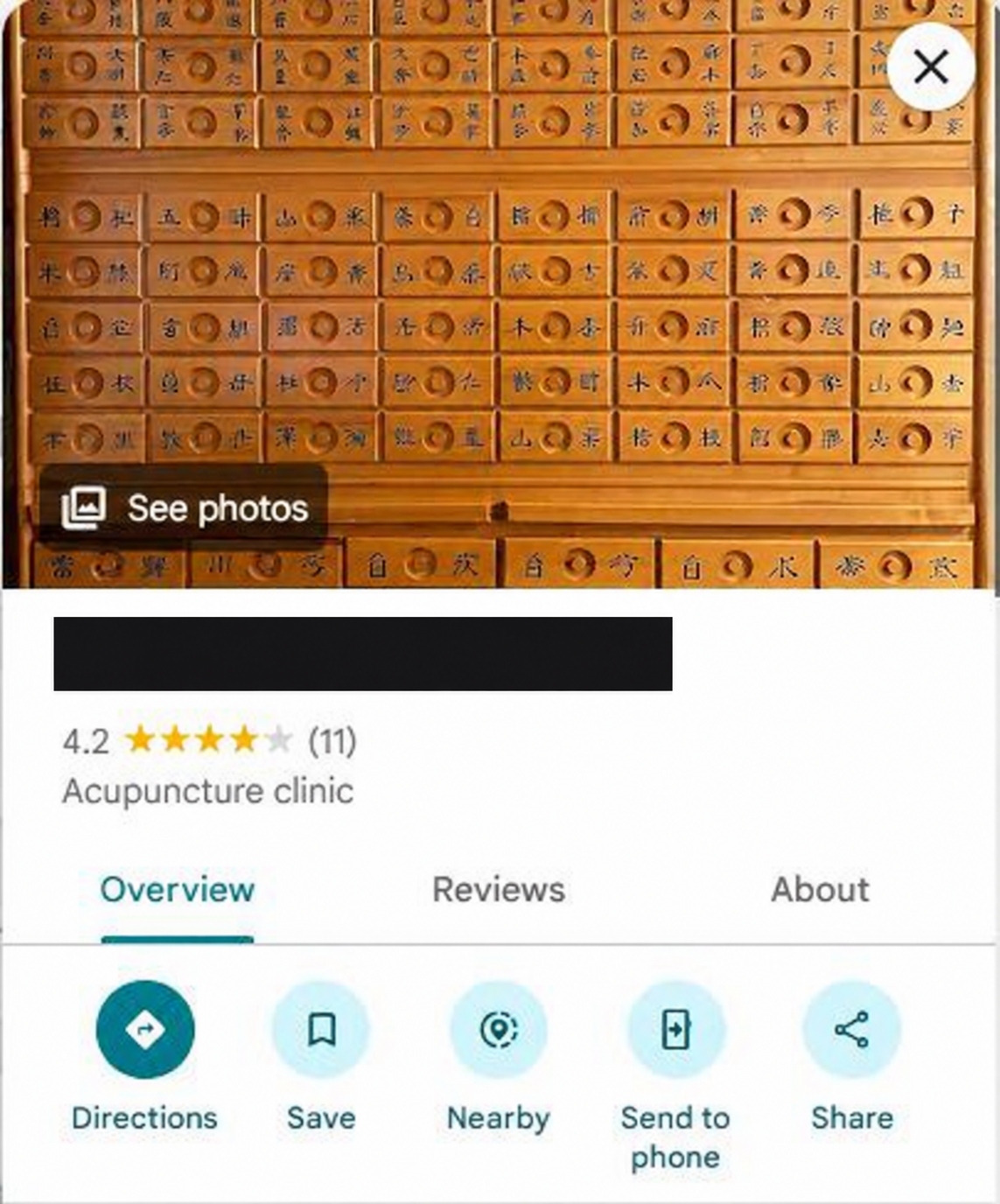
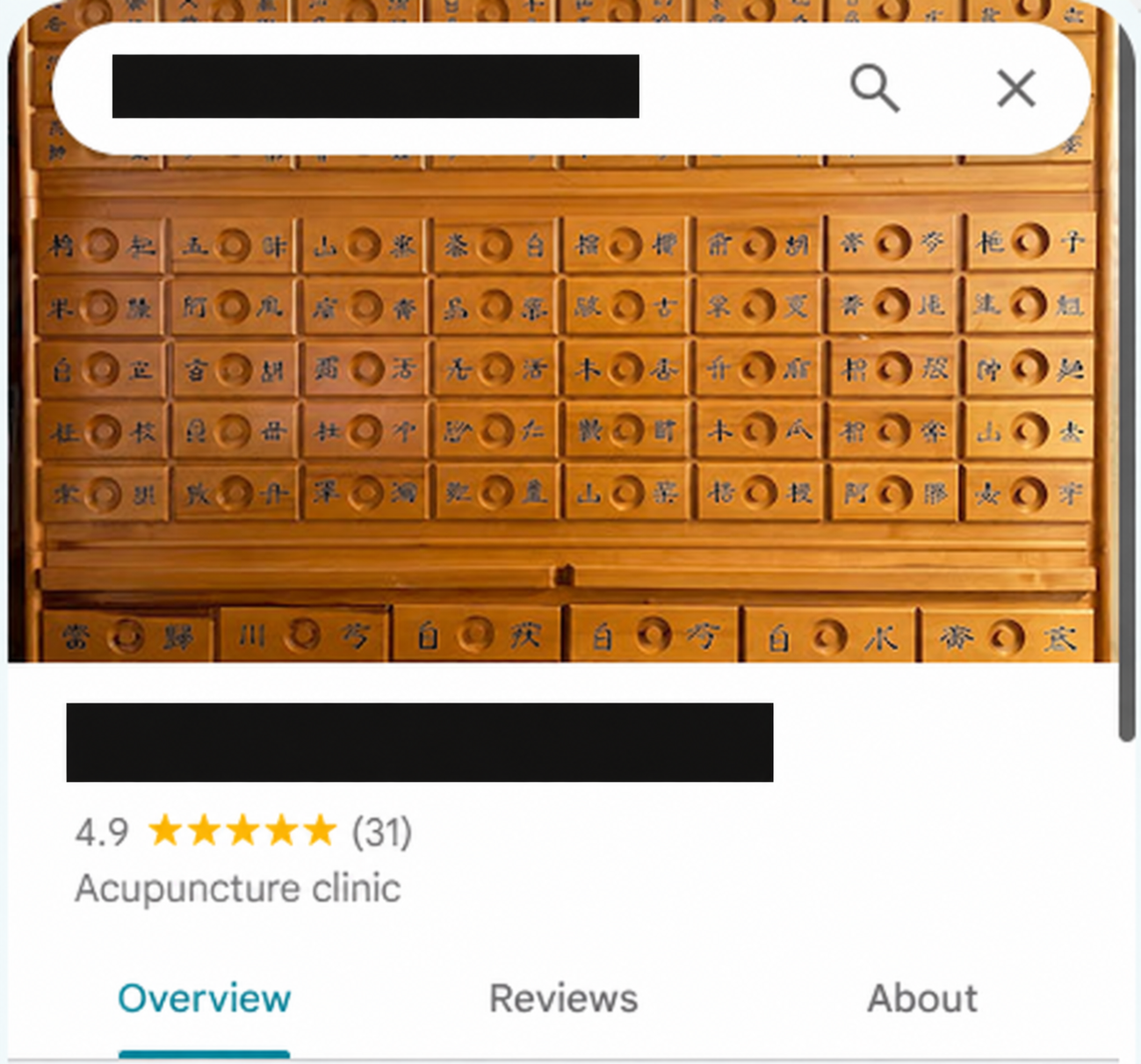
The client name is hidden with AI-assisted privacy redaction. The displayed review counts and ratings have been checked against the original screenshots supplied by WebsLead.
With this client, the useful habit was asking every customer. Having the card made it easier to point customers to the review link. The practical lesson is to make an honest review invitation part of the routine and make the next step easy.
These screenshots describe one client’s profile. They do not establish how much of the change came from the card alone, and another business may see a different result.
WebsLead Google review cards: set up for your business
Want to make the review invitation easier at your counter? WebsLead offers Google review cards configured to your business’s review link and posted to you. Put one at the counter or on the door so customers can tap or scan when they choose to share their experience.
- Two ways to open the link: NFC for compatible phones, plus a printed QR code for phones with QR-reading support.
- Setup handled for you: each card is configured to your own Google review link before it is posted.
- A one-off card purchase: it links directly to Google, with no card subscription to renew.
Google review card from WebsLead: pricing and setup
Need more than a card? Meet the WebsLead review system
The standalone card opens your Google review link. Our full review system adds review requests by message, a private feedback inbox and reporting, so you can follow up beyond the counter and keep customer feedback in one place.
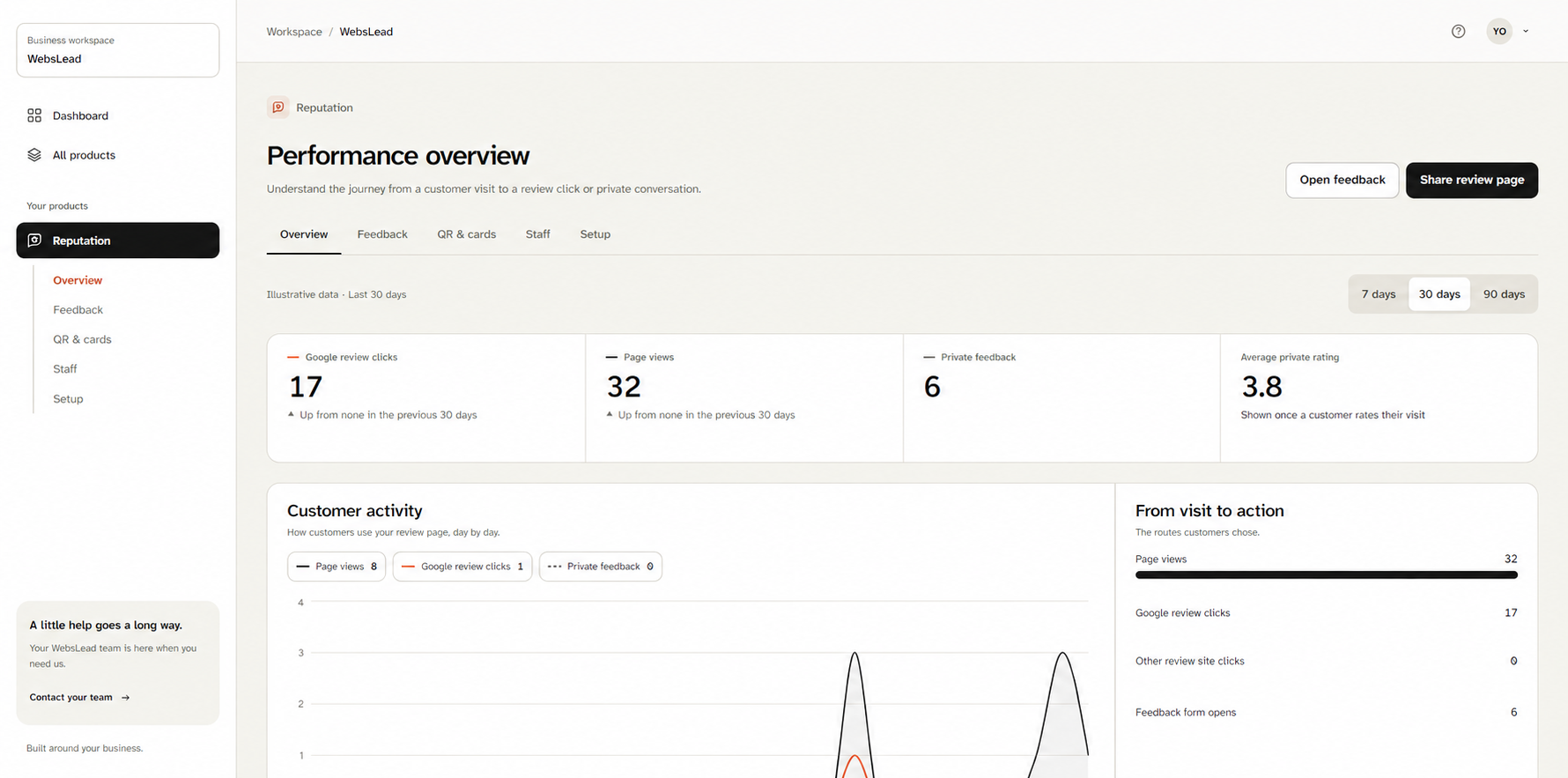
Open the dashboard illustration at full size
See how customers use your review page and keep track of private feedback. A Google review click records someone opening the link; it does not confirm that they published a review. The customer-facing page below offers the next step.
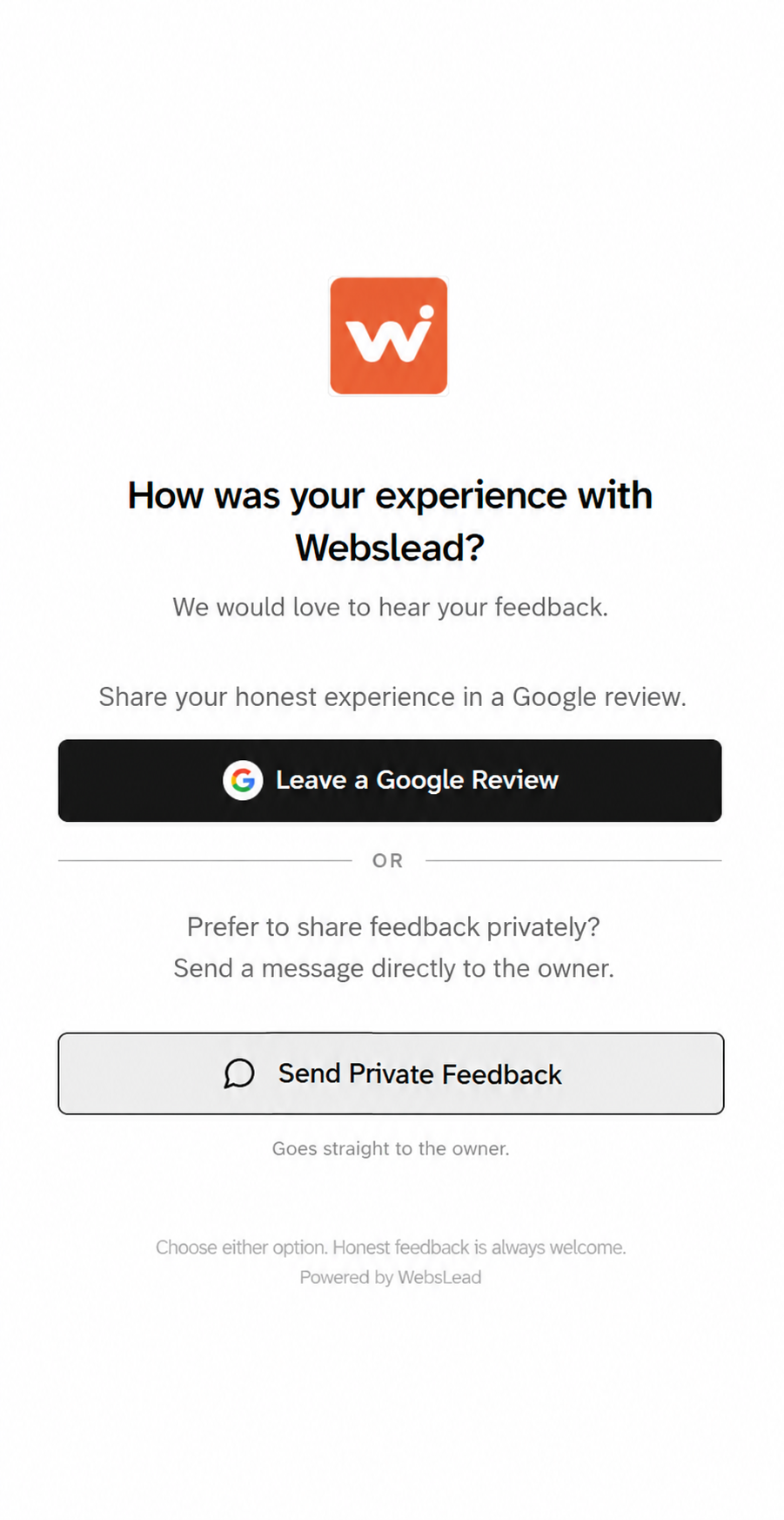
Offer both options to every customer, whatever their experience: leave an honest Google review or send private feedback. Private feedback must remain an additional choice, not a filter that decides who is invited to review on Google.(5)
Explore the WebsLead review system
What should you check if it does not open?
First separate a reading problem from a destination problem. If the phone never shows a link, check its NFC or QR-reading support. If a link appears but Google does not load, check internet access and the destination. If Google asks for sign-in, that is an account step rather than evidence that the card is broken.
For iPhone NFC, Apple says background reading is supported on iPhone XS and later and is unavailable in some situations, including while the camera or Apple Pay is in use, or in airplane mode.(2)
Close the camera before trying the tap route. These are Apple’s documented conditions, not a promise that every card will work on every supported phone.
For QR, try the phone’s QR scanner and check that the code is visible and undamaged. If both routes open the wrong business, ask the supplier to check setup. Tell them the phone model, operating-system version, route used and what appeared on screen so they can investigate the actual failure.
How should you ask for a review?
Invite an honest review from customers with a real experience. Do not offer rewards, select only likely positive reviewers, discourage negative feedback or pressure someone to review while they are on the premises. Do not tell them what rating or wording to use.(5)
A simple invitation is enough: “If you’d like to share your experience, you can tap or scan here to leave an honest Google review.” Let the customer decide whether and when to do it. Keep private feedback available without using it to decide who receives the Google review link.
What should you check before buying?
- Setup: does the supplier configure both NFC and QR for the correct business location?
- Destination: does it link directly to Google or rely on a supplier’s redirect?
- Fees: is the card a one-off purchase, and are any ongoing link or dashboard charges separate?
- Changes: can the destination be updated if your business details change, and does that cost extra?
- Support: who helps if a tag cannot be read, a code is damaged or the destination is wrong?
- Fit: is a card useful where your customers interact, or would a printed QR or follow-up link do the job?
Choose the option that makes a neutral review invitation easy for your customers. If you want a card configured for your business, our product page explains the current offer and what is included.
References
- Google Business Profile Help. Tips to get more reviewsChecked 7 October 2026.Back to text
- Apple Developer. Adding support for background tag readingChecked 7 October 2026.Back to text
- Apple Support. Scan a QR code with your iPhone cameraChecked 7 October 2026.Back to text
- Google Business Profile Help. Create a link or QR code to request reviewsChecked 7 October 2026.Back to text
- Google Maps contribution policy. Prohibited and restricted contentChecked 7 October 2026.Back to text